Command Line Interface (CLI)
Scikit-robot provides a unified command-line interface through the skr command, which consolidates all robot-related tools into a single entry point. This design makes it easy to discover and use various robot manipulation tools.
Installation
The CLI tools are automatically installed when you install scikit-robot:
pip install scikit-robot
Getting Started
To see all available commands:
skr --help
This will display a list of all available subcommands along with their descriptions.
Available Commands
visualize-urdf
Visualize URDF robot models in an interactive 3D viewer.
# Basic usage
skr visualize-urdf robot.urdf

# With specific viewer
skr visualize-urdf robot.urdf --viewer trimesh
skr visualize-urdf robot.urdf --viewer pyrender
skr visualize-urdf robot.urdf --viewer viser
Available Viewers
pyrender (default): OpenGL-based viewer with keyboard shortcuts for joint axis display and collision mesh toggling.
trimesh: Trimesh-based viewer using the trimesh rendering engine.
viser: Web-based viewer that opens in your browser. Provides interactive GUI sliders for manipulating joint angles in real-time. Ideal for remote visualization and environments without display servers.
Viser Viewer
The viser viewer provides a browser-based 3D visualization with an interactive GUI panel for controlling robot joint angles.
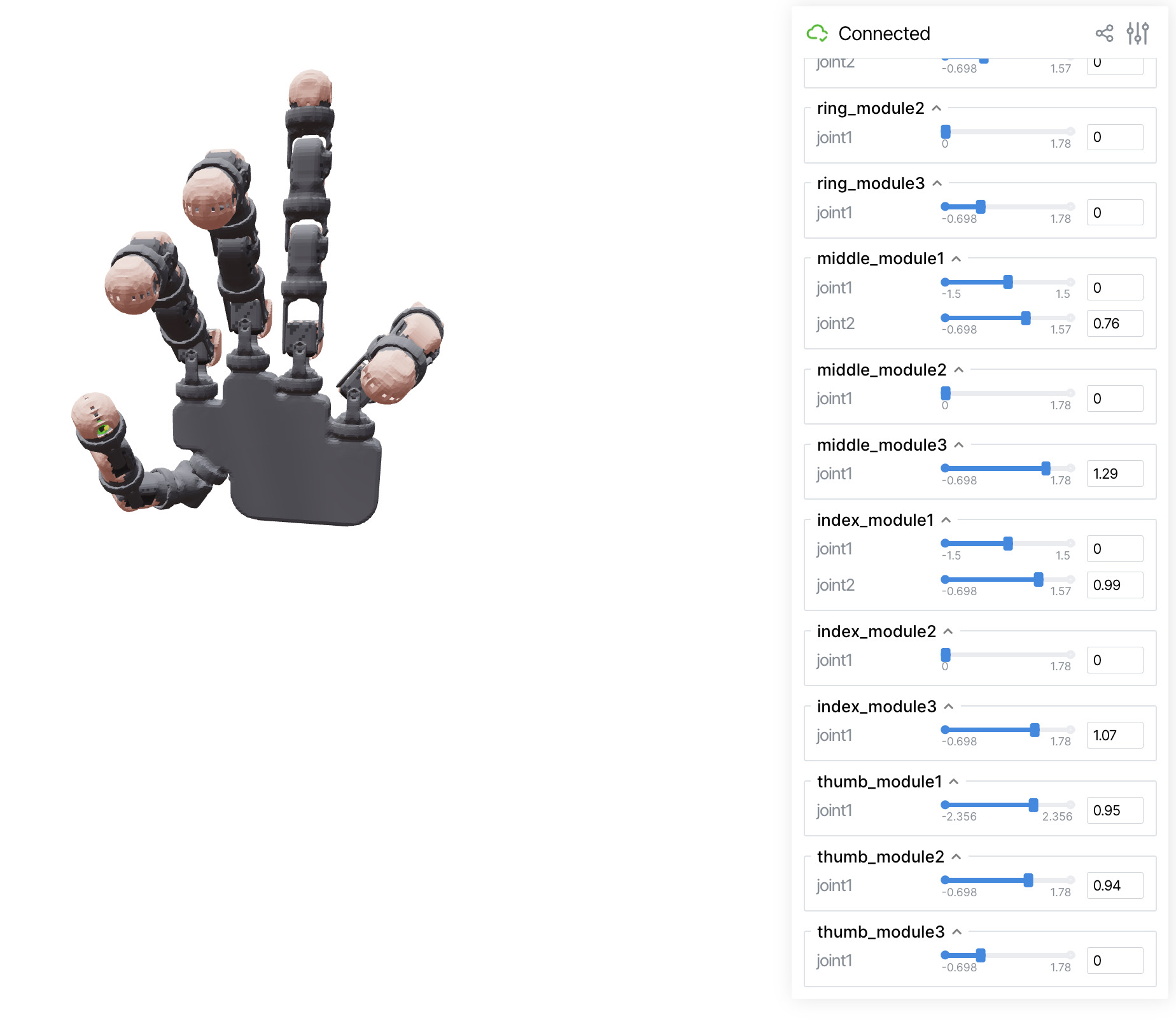
Features:
Web-based: Opens automatically in your default browser
Joint Sliders: Each joint has a slider to control its angle in real-time
Grouped Controls: Joints are organized into collapsible folders by module/link group
Remote Access: Can be accessed from other devices on the network
convert-urdf-mesh
Convert mesh files referenced in URDF to different formats or simplify them.
# Convert meshes
skr convert-urdf-mesh robot.urdf --output converted_robot.urdf

# Simplify meshes with voxel size
skr convert-urdf-mesh robot.urdf --voxel-size 0.001

# Convert to STL format
skr convert-urdf-mesh robot.urdf --output robot_stl.urdf -f stl

# Force visual mesh origins to zero (coincide with link origins)
skr convert-urdf-mesh robot.urdf --output converted.urdf --force-zero-origin
The --force-zero-origin option forces the visual mesh origin to coincide with the link origin. For more details on URDF structure and visual origins, see URDF Manipulation.
change-urdf-root
Change the root link of a URDF file to a different link.
# Change root link
skr change-urdf-root robot.urdf new_root_link output.urdf

# List available links
skr change-urdf-root robot.urdf --list

# Verbose output
skr change-urdf-root robot.urdf new_root output.urdf --verbose
modularize-urdf
Modularize URDF files by breaking them into reusable components.
skr modularize-urdf robot.urdf --output modular_robot.urdf
urdf-hash
Calculate a hash value for URDF files to track changes and versions.
skr urdf-hash robot.urdf
visualize-mesh
Visualize individual mesh files in 3D.
skr visualize-mesh mesh_file.stl
skr visualize-mesh mesh_file.obj
convert-wheel-collision
Convert wheel collision models in URDF files.
skr convert-wheel-collision robot.urdf --output converted.urdf
generate-robot-class
Generate Python robot class from URDF geometry. This tool automatically detects kinematic chains (arms, legs, head, torso) and generates a Python class with appropriate properties and end-effector coordinates.
No LLM or API keys required - uses only URDF structure and geometry.
# Generate robot class and print to stdout
skr generate-robot-class robot.urdf

# Save to file
skr generate-robot-class robot.urdf --output MyRobot.py

# Specify custom class name
skr generate-robot-class robot.urdf --class-name MyCustomRobot --output MyRobot.py

# Show detected groups without generating code
skr generate-robot-class robot.urdf --show-groups
Backward Compatibility
For backward compatibility, all original individual commands are still available:
# These commands work the same as their skr equivalents
visualize-urdf robot.urdf
convert-urdf-mesh robot.urdf --output converted.urdf
change-urdf-root robot.urdf new_root output.urdf
modularize-urdf robot.urdf --output modular.urdf
urdf-hash robot.urdf
visualize-mesh mesh_file.stl
convert-wheel-collision robot.urdf --output converted.urdf
generate-robot-class robot.urdf --output MyRobot.py
Getting Help
Each subcommand provides its own help information:
# General help
skr --help

# Help for specific commands
skr visualize-urdf --help
skr convert-urdf-mesh --help
skr change-urdf-root --help
Examples
Here are some common usage examples:
Visualizing a Robot Model
# Download a sample robot model and visualize it
skr visualize-urdf ~/.skrobot/pr2_description/pr2.urdf --viewer trimesh
Converting Mesh Formats
# Convert all meshes in a URDF to STL format
skr convert-urdf-mesh robot.urdf --output robot_stl.urdf -f stl

# Simplify meshes by decimation
skr convert-urdf-mesh robot.urdf -d 0.98 --output simplified.urdf
Changing Robot Structure
# First, see what links are available
skr change-urdf-root robot.urdf --list

# Then change the root to a specific link
skr change-urdf-root robot.urdf base_link new_robot.urdf
Architecture
The CLI system is designed to be extensible. New commands can be added by:
Creating a new Python module in
skrobot/apps/with amain()functionThe CLI will automatically discover and register the new command
Command names are derived from the module filename (underscores become hyphens)
This modular design makes it easy to add new functionality while maintaining a consistent interface.