URDF Manipulation
This tutorial covers how to work with URDF (Unified Robot Description Format) files in scikit-robot.
Understanding URDF Structure
URDF defines a robot as a tree structure of links connected by joints. The following diagram illustrates the relationship between links, joints, and visual origins:
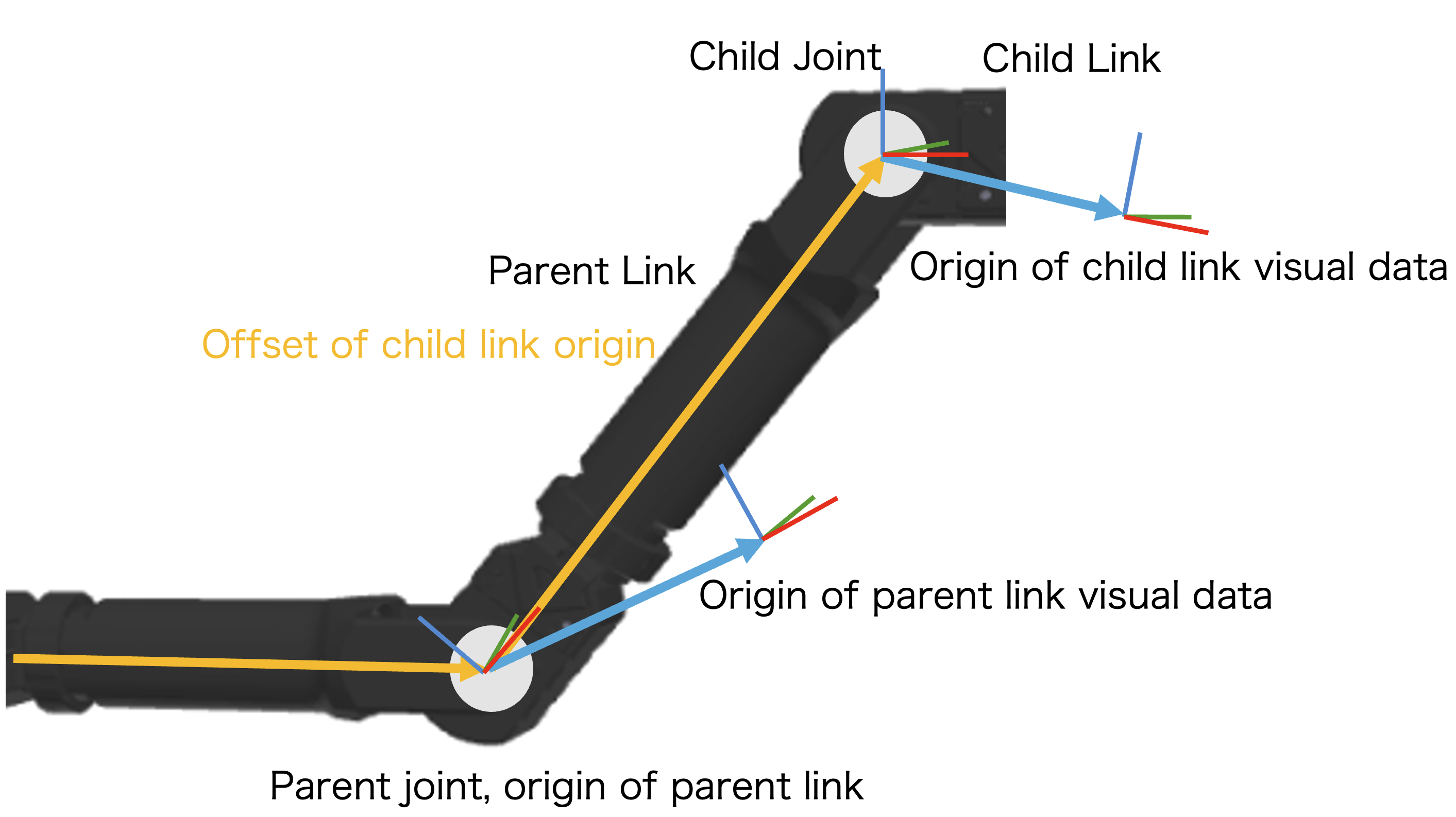
Key concepts:
Link: A rigid body with visual and collision geometry
Joint: Connects two links and defines the kinematic relationship
Parent Link: The link closer to the root of the kinematic tree
Child Link: The link further from the root
Visual Origin: The coordinate frame where visual mesh data is defined (may be offset from the link origin)
URDF Example
Here is an example URDF that corresponds to the diagram above:
<?xml version="1.0"?>
<robot name="two_link_robot">

  <!-- ========================================
       Parent Link (in diagram: "Parent Link")
       The link's origin is at "Parent joint, origin of parent link"
       ======================================== -->
  <link name="parent_link">
    <visual>
      <!-- In diagram: "Origin of parent link visual data" -->
      <origin xyz="0.15 0 0" rpy="0 0 0"/>
      <geometry>
        <mesh filename="package://robot/meshes/parent_link.stl"/>
      </geometry>
    </visual>
  </link>

  <!-- ========================================
       Child Joint (in diagram: "Child Joint")
       Connects parent_link to child_link
       ======================================== -->
  <joint name="child_joint" type="revolute">
    <parent link="parent_link"/>
    <child link="child_link"/>
    <!-- In diagram: "Offset of child link origin" (yellow line)
         Transform from parent_link origin to child_link origin -->
    <origin xyz="0.3 0 0" rpy="0 0 0.5"/>
    <axis xyz="0 0 1"/>
    <limit lower="-1.57" upper="1.57" effort="10" velocity="1"/>
  </joint>

  <!-- ========================================
       Child Link (in diagram: "Child Link")
       ======================================== -->
  <link name="child_link">
    <visual>
      <!-- In diagram: "Origin of child link visual data" -->
      <origin xyz="0.1 0 0" rpy="0 0 0"/>
      <geometry>
        <mesh filename="package://robot/meshes/child_link.stl"/>
      </geometry>
    </visual>
  </link>

</robot>
In this example:
Parent joint, origin of parent link: The coordinate frame of
parent_link(where the parent joint is located)Offset of child link origin (yellow line): The
<origin>inside<joint>defines the transform from parent link’s origin to child link’s originOrigin of parent/child link visual data: The
<origin>inside<visual>defines where the mesh data is positioned relative to the link’s originWhen using
--force-zero-originwithconvert-urdf-mesh, the visual origins are transformed toxyz="0 0 0", and the mesh data is repositioned accordingly
Loading URDF with RobotModel
Basic Loading
Use RobotModel to load a URDF file:
from skrobot.model import RobotModel

# Load from file path
robot = RobotModel()
robot.load_urdf_file("path/to/robot.urdf")

# Or use the class method
robot = RobotModel.from_urdf("path/to/robot.urdf")
Using Built-in Models
Scikit-robot provides several pre-configured robot models:
from skrobot.models import PR2, Fetch, Kuka, Panda

# Load PR2 robot
pr2 = PR2()

# Load Fetch robot
fetch = Fetch()

# Load Kuka iiwa robot
kuka = Kuka()
Accessing Robot Properties
Once loaded, you can access various robot properties:
from skrobot.models import Fetch

robot = Fetch()

# Get all links
print(robot.link_list)

# Get all joints
print(robot.joint_list)

# Get joint angles
angles = robot.angle_vector()

# Set joint angles
robot.angle_vector(angles)

# Access specific links
base_link = robot.base_link
end_effector = robot.rarm.end_coords
Visualizing the Robot
from skrobot.models import Fetch
from skrobot.viewers import TrimeshSceneViewer

robot = Fetch()
robot.reset_pose()

viewer = TrimeshSceneViewer()
viewer.add(robot)
viewer.show()
Fast Loading Without Mesh Data
For faster loading when mesh visualization is not needed:
from skrobot.models import PR2
from skrobot.utils.urdf import no_mesh_load_mode

# Load without mesh data (faster)
with no_mesh_load_mode():
    robot = PR2()
Command-Line Tools
For URDF manipulation tools and techniques, see:
How to Create URDF from CAD Software - Creating URDF from CAD software
Command Line Interface (CLI) - Command-line URDF tools
Scikit-robot provides comprehensive URDF manipulation tools:
visualize-urdf: Interactive 3D preview
skr visualize-urdf robot.urdf --viewer trimesh
convert-urdf-mesh: Optimize 3D meshes
# Convert mesh format
skr convert-urdf-mesh robot.urdf --output optimized.urdf -f stl

# Force visual mesh origins to coincide with link origins
skr convert-urdf-mesh robot.urdf --output converted.urdf --force-zero-origin
modularize-urdf: Convert monolithic URDF to reusable xacro macros
skr modularize-urdf robot.urdf --output robot_module.xacro
change-urdf-root: Dynamically reconfigure kinematic hierarchy
skr change-urdf-root robot.urdf new_root_link output.urdf